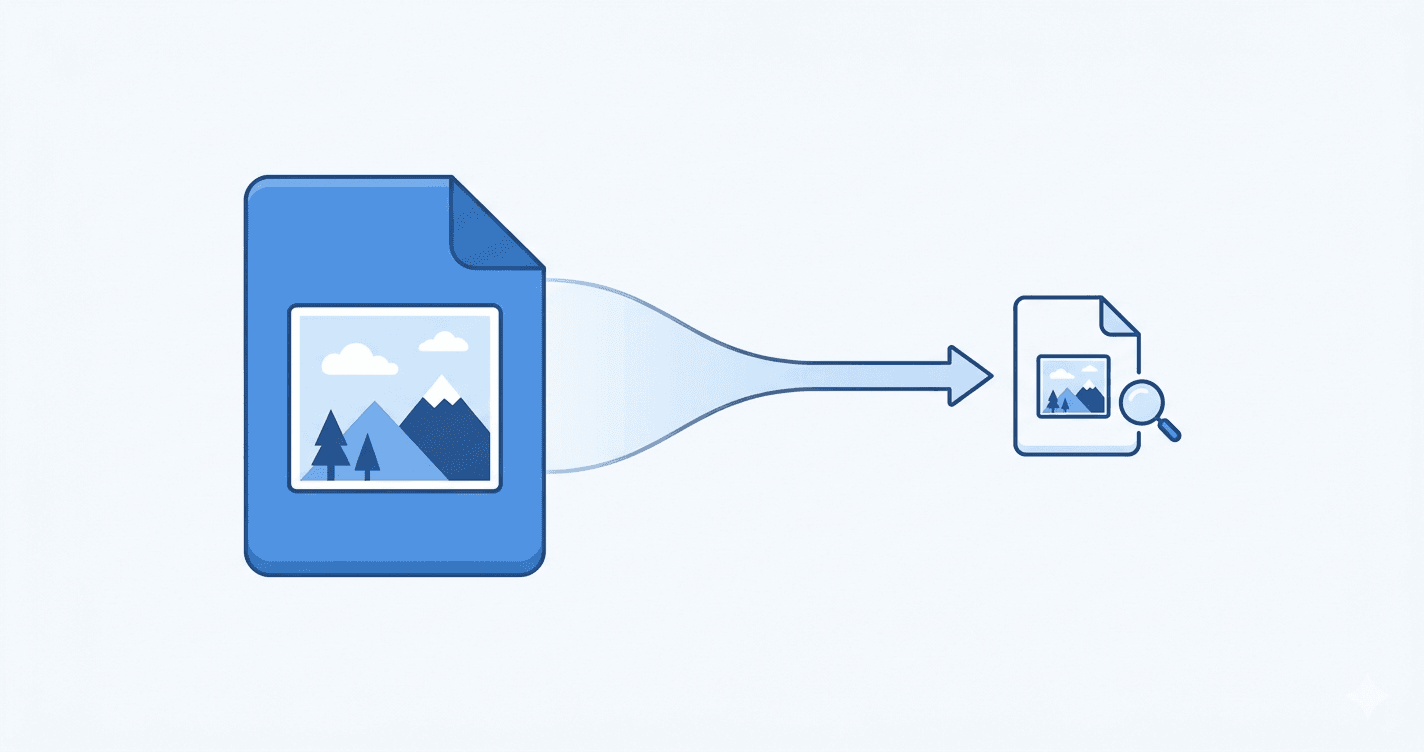
Government portals, banking exam forms, and several university applications cap signature uploads at 20 KB. A normal phone photo of your signature comes out at 600-1200 KB, and the obvious first reflex — running it through a generic image compressor — usually leaves it blurry and the portal still rejects it for “image not clear”.
Here is what is actually happening at this size, and how to get a clean 20 KB file without making it look like a fax from 1998.
Why 20 KB is the strictest cap on Indian portals
Most form portals cap signatures at 10-20 KB and photos at 20-100 KB. The 20 KB cap shows up on SSC signature uploads, IBPS signature uploads, IBPS thumb impression, RRB NTPC signature, Sarathi Parivahan driving licence (both photo AND signature), and several state PSC forms. It exists because the portal databases were sized in an era when storage was scarce, and the limit got grandfathered into newer interfaces.
The cap means the file has to carry the visual information of a signature — strokes, contrast, shape — inside a tiny budget. JPEG handles this fine if you size the image correctly first.
Resize vs compress — the order matters
The mistake most people make is opening a 5 MB photo and dragging the JPEG quality slider down until the file hits 20 KB. The pixels are still 4000 × 3000 — way too many for the budget — so the compressor has to throw away almost all detail to fit. The result looks like a smear.
The right order is to resize the pixel dimensions first, then compress. A signature only needs 140 × 60 pixels to display clearly. Resizing 4000 × 3000 → 140 × 60 throws away 99.99% of the pixels, but the ones that remain carry full signature detail. After resize, the JPEG fits in 20 KB at 80-85% quality, which is essentially lossless. The signature looks crisp because each pixel matters, not because each pixel is heavily compressed.
The same logic applies to any small-KB-cap target. Always resize to the required pixel dimensions first, then compress to the KB target.
When 20 KB is actually impossible
Sometimes the target file just cannot fit. A full-colour photo at 200 × 230 px with a detailed background and a complex face runs about 35-45 KB at usable quality. To force it under 20 KB the compressor has to strip detail, and the result looks bad.
When this happens, two checks help. First, is the background pure white? Compressed pure white takes almost no bytes; a mottled cream background eats the entire budget. Second, are the photo dimensions strictly correct? An accidental 250 × 280 px (instead of 200 × 230) carries 50% more pixels and proportionally more file weight. For most signature uploads, 20 KB is comfortably achievable. For colour photos under 20 KB, expect to fight the compressor and accept some quality loss.
Format choice at small sizes
JPEG wins below 50 KB, almost always. PNG includes a lossless palette table that costs 2-5 KB before any image data — fatal when the total budget is 20 KB. WebP is theoretically smaller than JPEG at the same quality, but Indian portals do not accept WebP, so it is a non-option for form uploads.
The one exception is a pure black-on-white signature with very few transitions. PNG with 2-colour palette mode can sometimes go under 5 KB. But unless you are sure the portal accepts PNG (most do not for signature fields), stay with JPEG.
Step-by-step: getting under 20 KB cleanly
The fastest path with no installs:
1. Take or scan the photo or signature on the device you will upload from. Cross-device transfer via WhatsApp re-compresses files and breaks the quality you carefully created.
2. Resize the pixel dimensions to exactly what the form requires (140 × 60 for SSC and IBPS signatures, 200 × 230 for IBPS photo, and so on). Use utiltap.com/image-resizer-pixels for any exact spec, or a portal-specific resizer like utiltap.com/signature-resizer that handles the dimensions automatically.
3. Compress to under 20 KB. utiltap.com/resize-image-to-20kb does this in one step with a live preview — you see how the image looks at each quality level, and the tool stops adjusting the slider once you cross the 20 KB threshold from above, so you get the highest possible quality at the cap. For a higher cap of 50 KB, utiltap.com/resize-image-to-50kb uses the same approach.
4. If you need finer control over the JPEG quality slider rather than a fixed target, utiltap.com/image-compressor gives you a live preview at any quality value. And if you want to test a modern format (for cases where the portal allows WebP, like some private hiring sites), utiltap.com/jpg-to-webp converts the file to WebP, which typically runs 25-35% smaller than JPEG at the same visible quality.
5. Verify by uploading immediately. Do not transfer the file to another device first — that often re-compresses it.
Frequently Asked Questions
Q: How do I reduce image size to 20 KB without losing quality?
A: Resize the pixel dimensions first to what the form actually requires (e.g. 140 × 60 px for an SSC signature), then compress the JPEG to 20 KB. Compressing without resizing first destroys quality because the file has too many pixels for the budget.
Q: Why does my photo look blurry after compressing to 20 KB?
A: You almost certainly tried to fit a high-resolution photo (1000 × 1000 px or more) into 20 KB by dropping quality. The fix is to resize down to the target pixel dimensions first (200 × 230 px or whatever the form needs), then compress. With the right pixel count, 20 KB is plenty.
Q: What is the best format to get under 20 KB?
A: JPEG. PNG carries a lossless palette table that wastes 2-5 KB before any image data — fatal at a 20 KB budget. WebP is smaller but not accepted by most Indian portals. Stay with JPEG unless the portal explicitly allows another format.
Q: Can I compress a colour photo to 20 KB?
A: Yes, but only at small pixel dimensions (under 200 × 230 px) and with a plain white background. A complex background or larger pixel dimensions will not fit in 20 KB at acceptable quality.
Q: Will WhatsApp compression bring my image under 20 KB?
A: It often does, but the result is unusable. WhatsApp's encoder optimises for thumbnail preview, not for retaining detail, so it removes sharp edges and adds noise. Government portal verifiers usually reject WhatsApp-compressed photos. Use a real resizer.
Try the free tool
Compress any image to under 20 KB with a live preview, stopping just below the cap so quality stays as high as possible.
Open Resize to 20 KB →